
A Complete Guide to Upload Music to Spotify [2023 Best]
In this article, you'll find a detailed tutorial for uploading music to the mobile and desktop versions of Spotify. More than this, you’ll get an extra idea of how to download Spotify songs to MP3 files on your computer.


Still confused about how to upload your local music to Spotify? Don't worry. We'll go through the process of importing music to your Spotify account across various devices. In addition, you'll get a practical workaround on how to download Spotify songs to MP3.
Spotify is unarguably appealing because you can access its extensive music library housing millions of songs, podcasts, and videos from artists worldwide. But sometimes, you will discover that some of your preferred tracks are outside of Spotify's massive music library. For this reason, Spotify allows its subscribers to upload their music to their platform. The steps to upload music files to Spotify vary per different device. On top of that, you may encounter some issues and restrictions that disable your uploads. Luckily, you only need a step-by-step guide on importing local songs to Spotify per device. And this article will serve just as that.
How to Upload Music to Spotify (Desktop & Mobile)
Though comprehensive as Spotify's music catalog may be, not all songs can be found on this music streaming app. Follow the steps in the tutorial below to learn how to add external songs to Spotify. This part will demonstrate the upload process on the desktop and mobile versions of Spotify.
From Desktop
Step 1: Launch the Spotify Desktop app on your computer, go to "Settings".
Step 2: Scroll down to find the Local Files option, and toggle "Show Local Files" to green.
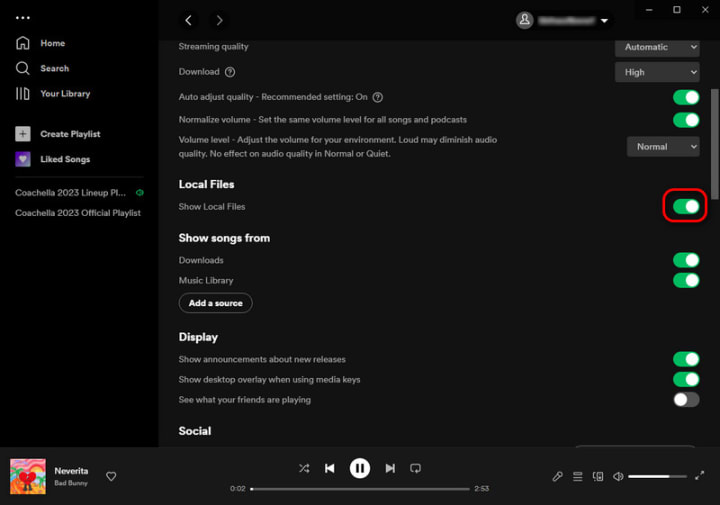
Step 3: Click "Add a source" to import audio files from the local folder. Then click "OK".
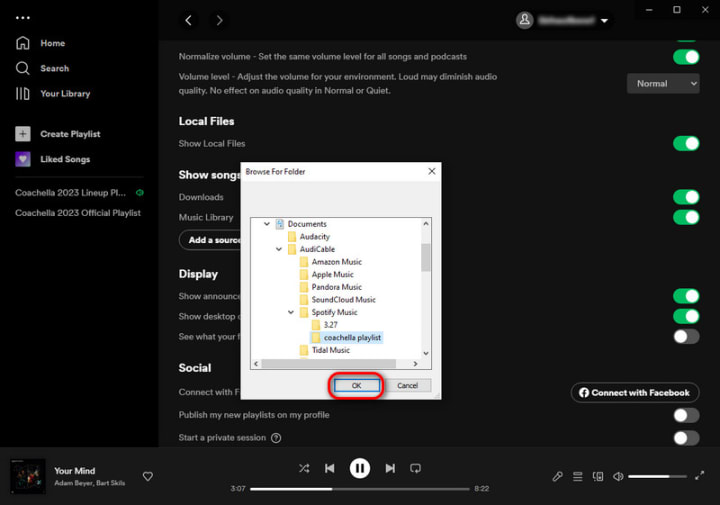
Step 4: Click back to "Your Library > Local Files", here you can find and play tracks stored on your computer in the Spotify desktop app.

Note: Spotify supports importing MP3 files only. To transfer songs from another streaming music service to Spotify, you can turn to AudiCable Audio Recorder. With this tool, you can extract MP3 files from any streaming music platform, then import the downloaded audio files to Spotify.
From Mobile (Android & iOS)
Step 1: Create a new playlist on the Spotify desktop app. Go to the Local Files folder, then add the imported audio to the new playlist.
Step 2: Open the Spotify mobile app on your phone. Tap "Settings" on the Home screen.
Step 3: Scroll down, find the option "Show audio local files", and switch on it.(Apple users tap the "Local audio files")
Step 4: Tap "Library" at the bottom of the screen, and then you can find the playlist with the local files. These audio are all grayed out, so you need to tap "Download" to save them to your Spotify Mobile app.
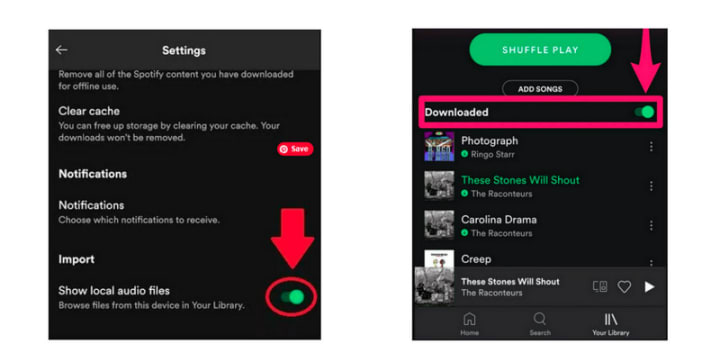
Once downloaded, you can listen to these local music offline on your Android phone or iPhone.
Note: Please ensure your mobile device and computer are connected to the same Wi-Fi network. Also, to play local files on the mobile Spotify app, you must upgrade to Spotify Premium and organize the desktop-uploaded songs into a playlist.
Extra Tips: How to Download Spotify Songs to MP3
Step 1 Download and Install AudiCable Spotify Music Recorder
Download and start AudiCable Spotify Music Recorder for Windows or Mac. Most popular music streaming platforms are displayed on the main interface of AudiCable. Navigate to "Spotify" and click.
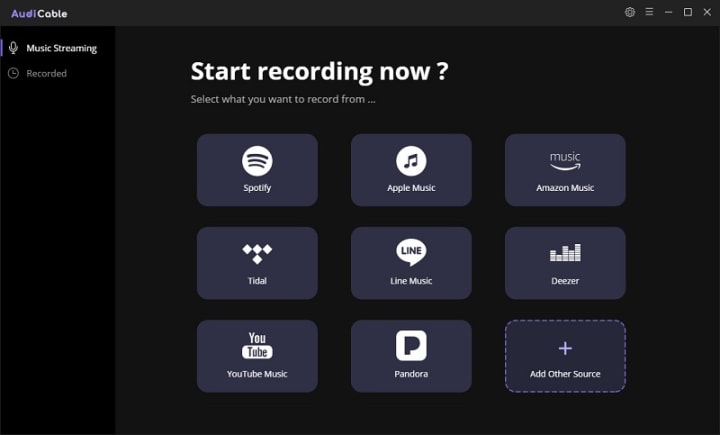
Step 2 Choose the Player and Sign in
Please choose the way you want to download Spotify music. After that, sign in with your Spotify Free or Premium account.
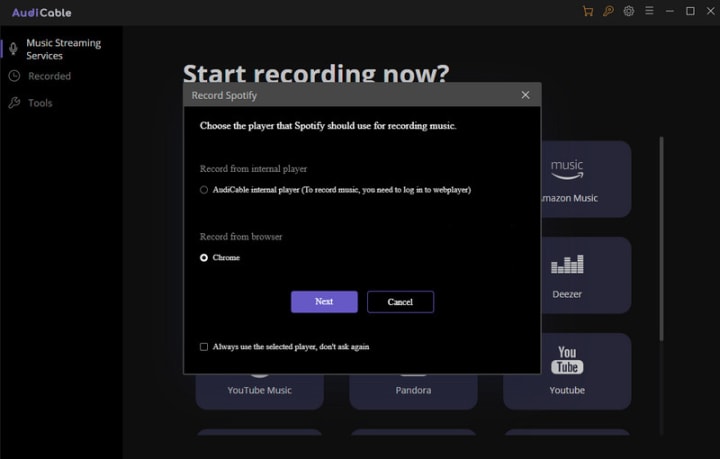
Step 3 Customize the Output Parameters for Your Spotify Music
On the top-right corner of AudiCable, click on a "gear icon". From the pop-up setting window, choose "MP3" as the output format. Then close it to apply the changes.

Step 4 Download Spotify Playlist to MP3 Files
Choose your preferred Spotify songs, playlist, or albums to play. As soon as you play the song, AudiCable will start recording simultaneously. All recorded Spotify songs are saved in the MP3 format you set before.
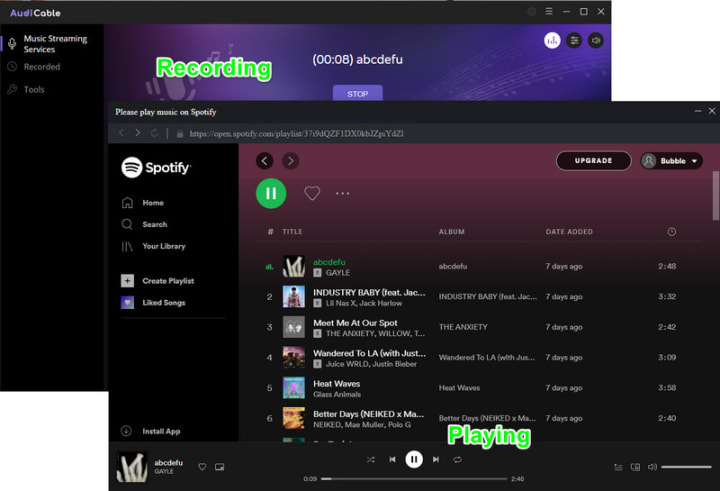
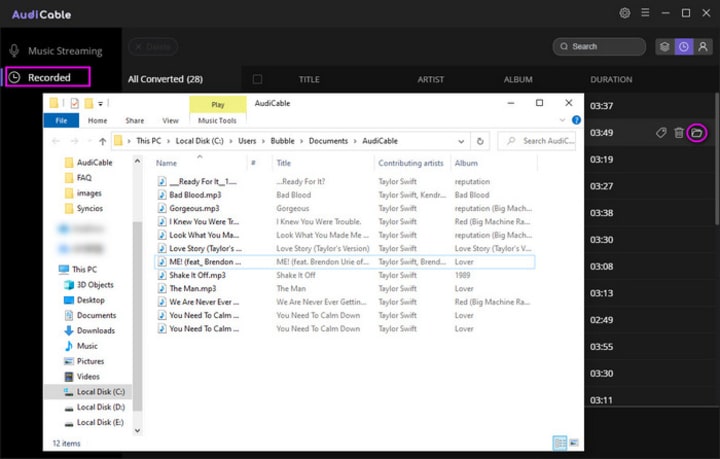
Step 5 Get Downloaded Spotify Songs on Your Computer Folder
Click the "Recorded" tap, and the "folder icon" behind a song, then you can quickly locate downloaded Spotify MP3s.
About the Creator
Whitney Brown
Love to share stunning music ideas from all streaming music resources.
Resource site in https://www.audicable.com/
Keep reading
More stories from Whitney Brown and writers in Beat and other communities.
How to Download Coachella 2023 Lineup Playlist to MP3
The 2023 Coachella Valley Music and Arts Festival is in full swing. This year's fest is set to display a more cross-cultural variety of music than ever. To everyone's delight, the announced 2023 lineup features tons of familiar names as well as new acts to enjoy over this music festival. You may already be among the many music fans cramming into the Empire Polo Club for America's largest and most known musical festival. Or perhaps someone who watches the 2023 Coachella livestream. Anyway, you have already got excited about this magically feverish atmosphere.
By Whitney Brown3 years ago in Beat
I've Just Realized
The President doesn't understand music. There. It felt very good to write that; it's some thing I just realized today. Oh , yes; he plays it. He TRUMPets it in rallies and meetings, pumps it across the airwaves when he gathers up our minutes waiting for his late arrival.
By Judey Kalchik a day ago in Beat



Comments (1)
Hi! Very good article. If you need a quick and easy transfer of playlists try musconv