
How To Connect Laptop To Blu Ray Player Wirelessly?
Discover how to connect your laptop to a Blu-ray player wirelessly with easy-to-follow steps, using Wi-Fi, streaming apps, or screen mirroring solutions.

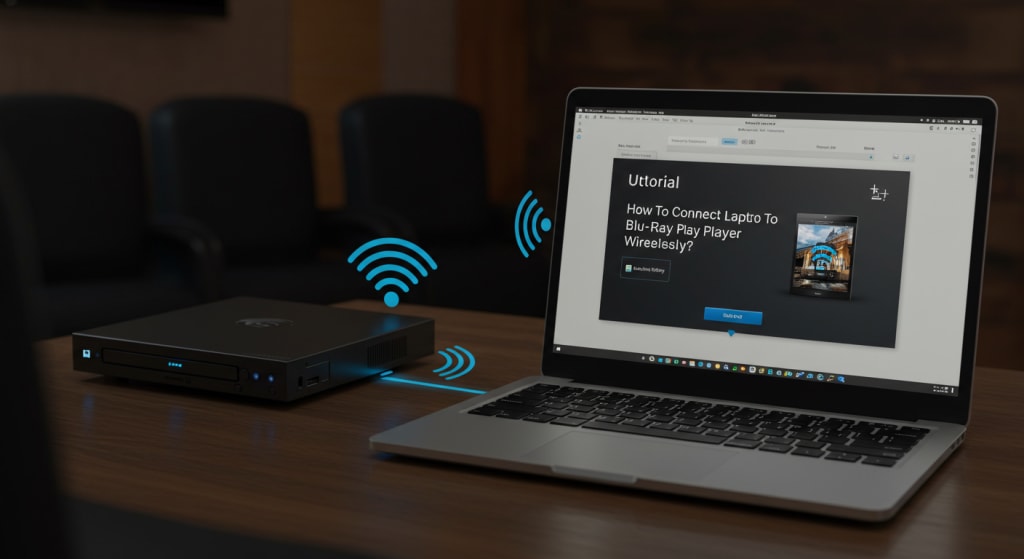
Wireless high definition TV and movie viewing is possible on a laptop and Blu-ray player without the hassle of unsightly cords. This can be rather useful when streaming Blu-ray material to several devices or sharing it with others in separate rooms.
This comprehensive article will cover the several methods for wirelessly connecting a laptop to a Blu-ray player and provide detailed instructions for each.
Why Would a Blu-ray Player and a Laptop Connect Wirelessly?
A laptop can benefit from several wireless connections to a Blu-ray player:
Flexibility: Watch Blu-ray entertainment from any room in your home without a physical connection.
Easy sharing of Blu-ray content between different PCs or TVs.
With multi-room streaming, enjoy Blu-ray entertainment in several rooms without the need for extra equipment or wires.
Reduced clutter: Eliminating HDMI and other physical cords results in a cleaner setup.
Everything You'll Need to Connect a Laptop and Wireless Blu-ray Player
Ensure you have the following before you begin:
A wirelessly capable Blu-ray player Check to see whether your Blu-ray player is Wi-Fi or Bluetooth enabled.
A wireless-enabled laptop Most new computers come with Wi-Fi and Bluetooth.
Software or apps for streaming: You may wirelessly broadcast media with apps like Serviio or Plex.
Dependable WiFi access It takes a strong Wi-Fi signal to guarantee smooth streaming.
One router that works: Check that your network supports the wireless protocols needed to stream.
Methods of Connecting a Laptop Wirelessly to a Blu-ray Player
A collection of standards known as DLNA allows devices to share media content within a home network.
Popular Blu-ray player support for DLNA enables wireless streaming with it practical.
Set up your laptop to be a DLNA server
To connect a laptop to a Blu-ray player over DLNA, you must first configure a DLNA server:
Get the DLNA software here. Set up DLNA server software, such Serviio or Plex.
The server has to be supplied with media: Use the software to add your Blu-ray and other media to the server. This can involve transferring Blu-ray discs to your laptop's storage.
Organise the server: Make sure the DLNA server on your laptop is running and configure sharing.
Connect your DLNA Server and Blu-ray Player.
Config your DLNA server, then connect the Blu-ray player:
The Blu-ray player has to be linked to your WiFi network: follow the player's instructions to connect to your home Wi-Fi network.
How to connect to the DLNA server with the Blu-ray player Open the Blu-ray player's menu and look for the "Media Server" or DLNA choice. Select your laptop from the available servers list.
Navigate and play media: Sort the Blu-ray player content you want to watch from the shared media on your laptop.
Use Miracast or Wireless Display
With wireless display technologies like Miracast, you can project your laptop's screen onto a Blu-ray player or smart TV.
Check Miracast Compatibility
Before utilizing your laptop or Blu-ray player, make sure they support Miracast:
Check your laptop's compatibility—most modern Windows laptops are capable of Miracast. Compatibility is checked in Windows through the "Project" menu.
Check the Blu-ray player compatibility: See "Miracast" or "Wireless Display" in the Blu-ray player's menu or instructions.
Link up to Miracast
Having confirmed compatibility, connect your laptop to the Blu-ray player:
Active the Miracast function on the Blu-ray player. Choose Wireless Display or Miracast from the Blu-ray player's menu. Turn it on to make the player visible.
Connect the laptop and Blu-ray player: Enter "Windows + K" on your laptop to display the "Connect" option. Select the Blu-ray player from the available gadgets.
Orient your laptop's screen mirrorwise: After connected, the screen of your laptop will reflect that of the Blu-ray player. Now days, a laptop can play media including Blu-ray discs.
Use Bluetooth (with limited applications).
Though not often utilized for HD video streaming, Bluetooth can be useful when connecting a laptop to a Blu-ray player for audio streaming or restricted video material.
First, hook up your laptop and Blu-ray player.
Pair the laptop and Blu-ray player to start a Bluetooth connection:
On the Blu-ray player, enable Bluetooth: To find the Bluetooth settings, launch the player's menu. Make sure Bluetooth is turned on and the player is discoverable.
Join your Blu-ray player and laptop: Find compatible devices by navigating to your laptop's Bluetooth settings. Choose the Blu-ray player from the selection to pair.
Playback audio or password-protected video: Once paired, your laptop can send music or, in some cases, limited video content to the Blu-ray player.
Overview
With a laptop and Blu-ray player linked wirelessly, you can watch high-definition movies without requiring any physical wires.
There is convenience and flexibility with this. DLNA, Miracast, or Bluetooth are among the approaches you might choose from, based on your requirements and configuration.
Make sure you have the right software and hardware for wireless connections and that your Wi-Fi network is consistently reliable in order to guarantee flawless streaming.
These guidelines will help you link your laptop and Blu-ray player wirelessly. Kindly use the space provided for comments below to offer any more guidance or observations. Enjoy your broadcasting!
About the Creator
Laptopflora
Welcome to Laptopflora, where laptops meet expertise and your tech decisions are made easier. Our journey began with a single mission: to create a trusted platform that provides clear, actionable, and insightful information about laptop.
Keep reading
More stories from Laptopflora and writers in Education and other communities.
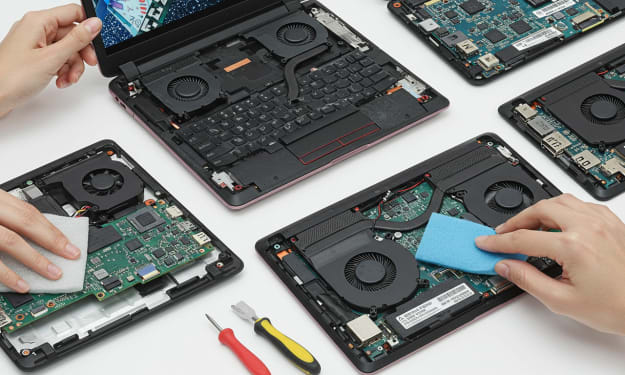
How To Clean The Inside Of A Laptop?
Regular internal cleaning is necessary for both extending the life of your laptop and preserving its best performance. Dust, debris and even pet hair buildups over time can lead to hardware failure, overheating and reduced performance.
By Laptopflora9 months ago in Education
The Backbone of Modern Infrastructure: Industries Powered by Hot-Dip Galvanized Steel
Hot-dip galvanized steel plays a silent but critical role in shaping the modern world. From the roads we drive on to the buildings we work in, this corrosion-resistant material supports countless structures and systems that people rely on every day. By coating steel with a zinc layer through the hot-dip galvanizing process, manufacturers significantly extend the metal’s lifespan, improve durability, and reduce long-term maintenance costs. These benefits make hot-dip galvanized steel a preferred choice across many industries where strength, reliability, and longevity are non-negotiable.
By Frontier Galvanizing7 days ago in Education
Smart Steps Today for a Comfortable Tomorrow
Planning for retirement might feel overwhelming, but it does not have to be. A little preparation now can make your future feel far less uncertain. The most important thing is to start thinking ahead and taking action while you still have time. Key retirement planning tips for a secure future are easier to follow than many people believe. With steady decisions and a clear goal, you can build a future that is both safe and fulfilling.
By Michael Petruskaa day ago in Education
Our Song
Evening has given way to night. Gently, I settle next to you on the comfortable, old love seat and reach for your hand. You snatch it away, again. It cuts me to the quick, but I hide the pain, understanding that the reaction is but part of your demented state. Since the accident, your presence here in our cozy home has been clouded by a haze I can't see. Nevertheless, I feel the frigidity of your expressions and it serves as an excruciating reminder of the immeasurable distance between us.
By Dana Crandell2 days ago in Fiction


Comments
There are no comments for this story
Be the first to respond and start the conversation.