
How to Recover Deleted Files From an SD Card on Different Devices
Simple methods for memory card data recovery for Windows, Mac and Android.

SD Cards are prevalently used on cameras, smartphone devices etc. We often keep hold of pictures, audio and video files and documents on this portable storage medium. If you accidentally deleted files from your SD Card, you will look for a solution immediately. As some files hold a lot of information and losing them can create a panic situation. But worry not! As we are here to help you teach the methods on how to recover deleted files from SD Card. We will cover the different scenarios to help you make the recovery process easy across various devices.
1.Recover SD Card files on Windows -
Using a powerful file recovery tool raises your chances of recovering your lost data on Windows. Advanced File Recovery is an efficient tool to help recover deleted files from a SD card. This will be helpful in case you have lost files from an SD card used in a camera or Android device. It runs on a robust algorithm and is capable of scanning 1000+ file formats such as DOC, DOCX, XLS, XLSX, PPT, PPTX, RAR, ZIP, EMLX, DNG, JPEG, JPG, TIFF, TIF, BMP, GIF, PNG, AVI, WMV, MP4, MOV, M4V, 3GP, MP3, WAV.
Its intuitive interface makes it easy to understand for new users and help you in every step of recovery. It can also recover accidentally deleted files from internal and external hard drives. Additionally, you can preview the files before recovering to make a better selection. Let’s learn the steps needed for memory card data recovery -
Step 1: Download Advanced File Recovery. Install and complete the setup.
Note: We recommend purchasing the premium version of the software in order to successfully recover data.
Step 2: Connect your SD Card to your PC using the SD card port or using the SD Card adapter.
Step 3: Launch Advanced File Recovery. From the Home screen, select a location to scan from the Location section - Removable (in this case your SD Card).
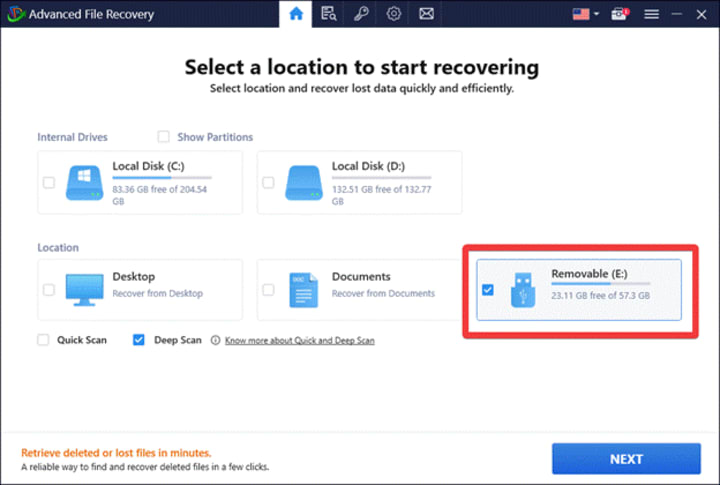
Also select the Deep Scan option to run a thorough scan of your SD card. Click Next.
Step 4: Select the type of data on the next screen. Just to be more cautious, we have selected all the options available including the Audio, Video, Documents, Photos, Compressed files.
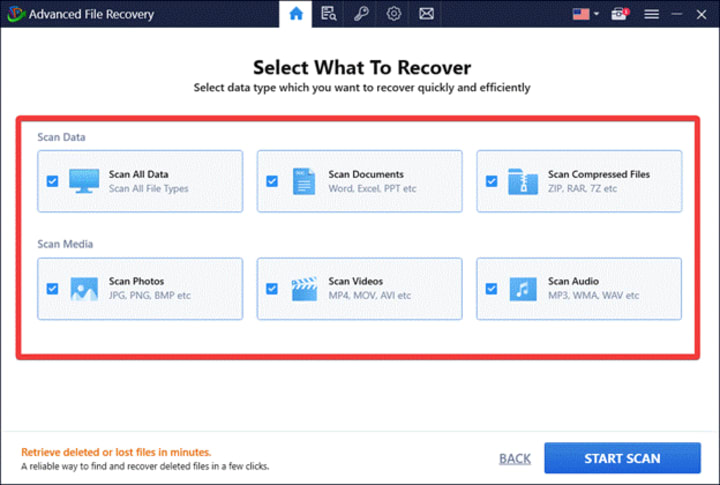
Click the Start Scan button.
The scan will be initiated and takes a few minutes to produce a result summary.
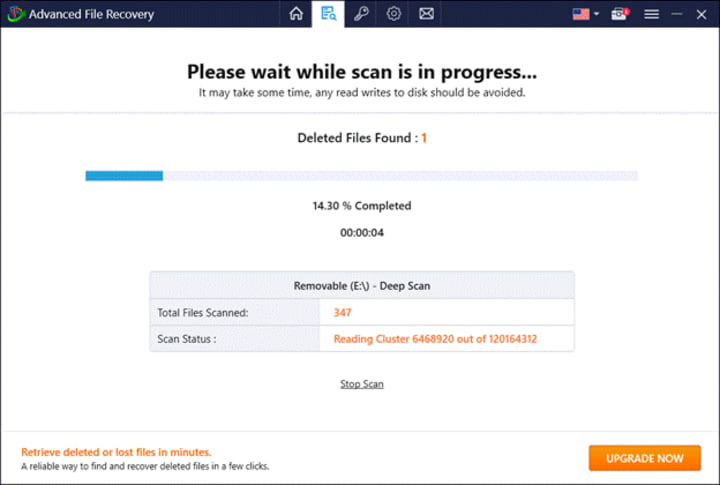
Step 5: Next, you can preview your recovered files and select them accordingly.
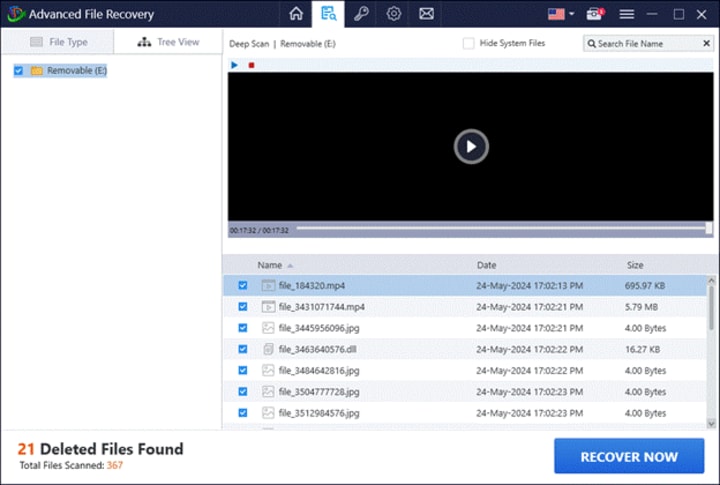
Click on Recover Now.
Step 6: Next, you can select a location on your computer which is different from the SD card to avoid the overwriting of the files. Here you can save the recovered files.
This is how to recover deleted files from SD card effortlessly on a Windows PC.
2.Recover SD Card files on Mac
If you have deleted important files from your SD card, and are trying to recover it using Mac, this is the method for you. To recover SD card files here we are taking help from another third party tool - Disk Drill. Follow these steps:
Step 1: Connect your SD card to your Mac.
Step 2: Visit Disk Drill official website and download the software on your Mac. Finish the setup.
Step 3: Launch Disk Drill and select the SD Card from the home page.
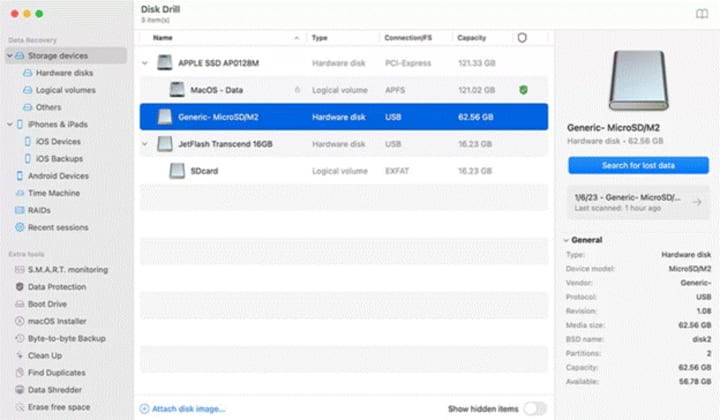
Now click on Select for lost data on the right pane.
Step 4: The scan will run for a few moments and upon completion, it will show you the results in the form of different folders.
You can go through each folder - Pictures, Video, Audio, Documents, Archives etc. Preview the files and select them alongside.
Once you are done click on the Recover button.
It will prompt you to save the files to a safe location. Thereafter, you can easily access the recovered files from your SD Card on your Mac.
3.Recover SD Card files on Android -
Now, let's learn how to recover deleted files from SD card on Android device. Google Play Store comes with a plethora of applications claiming to help with the recovery process. But we would advise you to go with the best in the market. UltData by Tenorshare is a good application, which helps with memory card data recovery in easy steps.
Step 1: Insert SD Card in your Android device.
Step 2: Download UltData from Google Play Store.
Step 3: Select the data you would like to recover and run the scan.
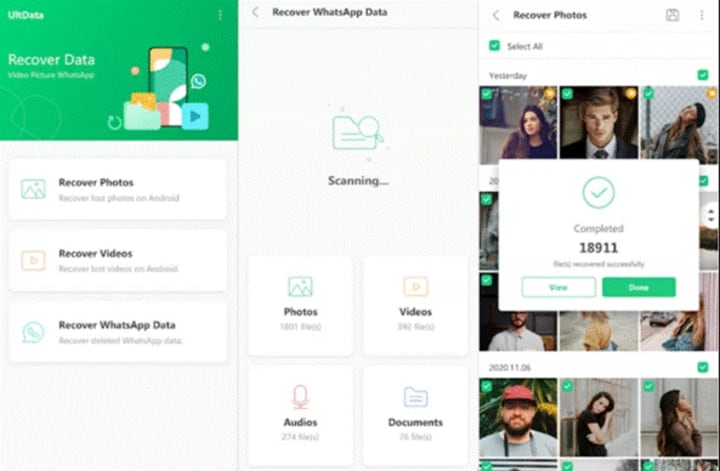
Step 4: Once the files are found, you can take a look at them and select them before recovering.
This is an easy choice when looking to recover deleted files from SD on your Android device.
Conclusion -
It might not look easy at first, but it is very much possible to recover the deleted files from SD card. Your best bet is to act fast and know your options. If you are using any of the devices mentioned above, you can easily find a third party tool which helps recover deleted files on SD card. Using Advanced File Recovery for Windows lets you recover data from external storage devices such as USB, flash drives, HDD, SD Card along with the internal drive. Similarly, you can find Disk Drill for Mac and UltData for Android.
Make sure to preview the files before recovering them. Another important point to remember is that always save the recovered files in a different location than the previously saved location to avoid overwriting of files.
Frequently Asked Questions -
Q1. Is it possible to recover deleted files from SD card?
Yes, with the right tools it is possible to recover deleted files on SD Card. We have stated the best solution in the post to help you with the steps on how to recover deleted files from SD card.
Q2. How do I recover permanently deleted photos from my SD card?
To recover deleted photos from SD card, connect it to a Windows PC. Download Advanced File Recovery and run the scan for the lost photos. It will show you the results quickly with the option to preview the photos before selection. Select the deleted photos and click on Recover and you will have your deleted photos on your computer.
Q3. Can you recover SD card without software?
No, unfortunately it is not possible. As SD card file recovery requires a third party software to run a scan and locate the deleted files.
Q4. Can corrupted SD card files be recovered?
Yes, it is possible to recover deleted files from a corrupted SD card. If you are wondering how to recover files from SD card which is corrupted, you will need powerful data recovery solutions such as Disk Drill and Advanced File Recovery.
About the Creator
Aditi singh
An experienced and passionate person in the field of Technology. I like to write about the latest trends and share my views about them.
Keep reading
More stories from Aditi singh and writers in Education and other communities.
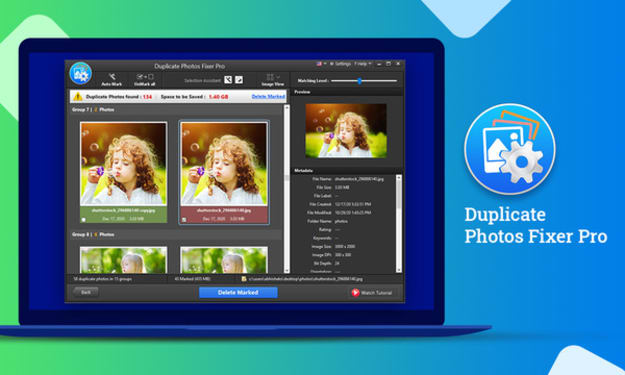
How To Weed Out Duplicate Digital Photos On Your Windows Computer
Everything today is stored digitally from pictures to videos, audios or even important documents. This increases the chances of creating a huge pile of duplicates taking up a larger space on your computer. With this, your system gets cluttered and to declutter it, there arises the need of a robust utility that can automatically detect duplicate photos and remove them without any manual hassles.
By Aditi singh4 years ago in Photography
How Emerging Energy Technologies Are Reshaping Financial Markets in 2026
The year 2026 marks a pivotal moment for the global energy landscape as emerging technologies redefine how energy is generated, stored, and consumed. These innovations are not only transforming the infrastructure of modern power systems but also profoundly influencing financial markets. Investors, policymakers, and energy companies are watching closely as new technologies drive shifts in capital allocation, reshape risk management, and open entirely new economic opportunities. The financial impact is far-reaching, affecting everything from investment strategies to long-term planning across both traditional and renewable energy sectors.
By Matthew J Smith5 days ago in Education
The Credit Reset: Why Portugal is Embracing the USD 239.35 Million ‘Buy Now, Pay Later’ Wave
Walking through the Chiado district in Lisbon or scrolling through a Portuguese fashion boutique online, you’ll notice a significant change at the checkout. The traditional credit card is no longer the undisputed king. Instead, a new player has arrived: Portugal Buy Now Pay Later.
By Neeraj kumar5 days ago in Education



Comments (1)
Interesting and delicious content. Keep posting more