
How to Recover Data from a CFexpress Card
ost data on your CFexpress card? Learn how to recover your files using proven techniques. Get back your important data from CFexpress cards.

Is your CFexpress card no longer showing the valuable data you need? We have faced this issue ourselves and spent considerable time addressing the complexities of retrieving lost data. To save you time and effort, we have established this article to demonstrate the methods that successfully helped us recover files from CFexpress cards. These proven strategies are designed to restore your data and enable you to continue your projects with minimal downtime.
What Factors Influence the Success of CFexpress Card Data Recovery
If you have never worked with data recovery before, we consider it necessary to explain a little about the principle of operation of CFexpress cards and the factors that can affect recovery success.
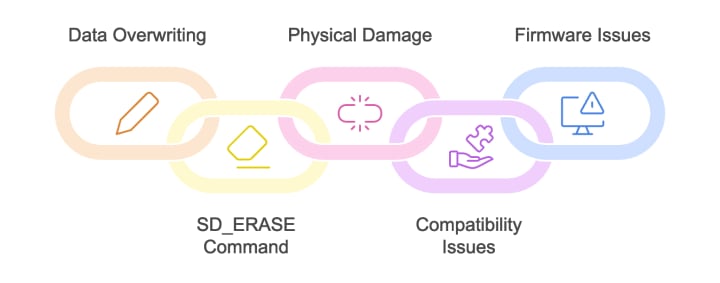
- Firstly, data overwriting is an important factor. If you continue to add new files to a card with existing data loss, you reduce the chances of successful recovery. The CFexpress card’s fast write speeds make it susceptible to quick data overwriting.
- Secondly, cameras often use the SD_ERASE command during formatting. This command is designed to cleanse the card, remove all previously stored data, and prepare it for new content. If you have lost files due to formatting your CFexpress card, the SD_ERASE command is likely what your camera applied. It erases data, and you cannot recover lost files.
- The next factor is physical damage to the card. CFexpress cards are powerful but susceptible to physical harm, like deformation, fracture, and exposure to extreme environmental conditions. In cases of physical damage, it is advisable not to attempt DIY recovery methods, as these might cause further damage to the data.
- Additionally, there are compatibility issues. The specific CFexpress card type (Type A, B, or C) may not fully support all devices or recovery software, which may make it difficult to access or restore the data.
- Lastly, firmware issues can also impact recovery. The firmware of a CFexpress card governs how it interacts with devices and handles data. Corruption or errors in the firmware cause the card to become unrecognized or to function improperly. This complicates data recovery efforts.
How to Recover Data from CFexpress Card
If you are dealing with data loss on your CFexpress card for the first time, the likelihood that you have set up built-in Windows functions such as File History to work with external devices like CFexpress cards is quite low. In such instances, the primary option for CFexpress card recovery is the use of data recovery software. In the next sections, we describe several software tools and provide detailed instructions to help you understand and use these programs to retrieve your lost data. We aim to guide you through the process, step by step, to maximize your chances of a successful recovery.
Method 1: Use Disk Drill to Recover Data from CFexpress Cards
We had to test a lot of CFexpress recovery software, but the best one for us was Disk Drill. We chose it because it is able to recover both deleted files and recover formatted CFexpress cards. It also supports recovery and preview of photos and videos in RAW format, which are often stored on CFexpress cards used in cameras.
🧩 Pro tip: If your CFexpress card shows signs of damage, we advise you to create a byte-by-byte copy of it in Disk Drill and then scan it to reduce the impact on an already damaged device and save data from eventual loss.
1. Download Disk Drill from its official website and install it on your computer. Once installed, open the application to view a list of storage devices.
2. To start the recovery process, connect your CFexpress card to your computer with a card reader. This is necessary because recovering data directly from a camera is not feasible.
3. Identify and select your CFexpress card from the list of drives displayed in Disk Drill’s user-friendly interface. Click on ‘Search for lost data’ to start the scanning process.
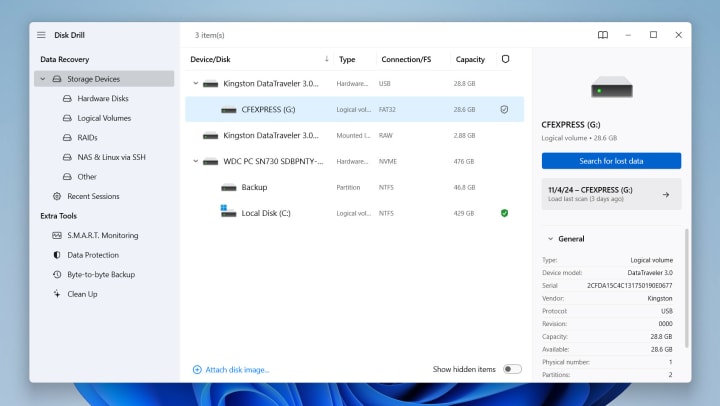
4. Disk Drill scans quickly and allows for the rapid detection of recoverable files.
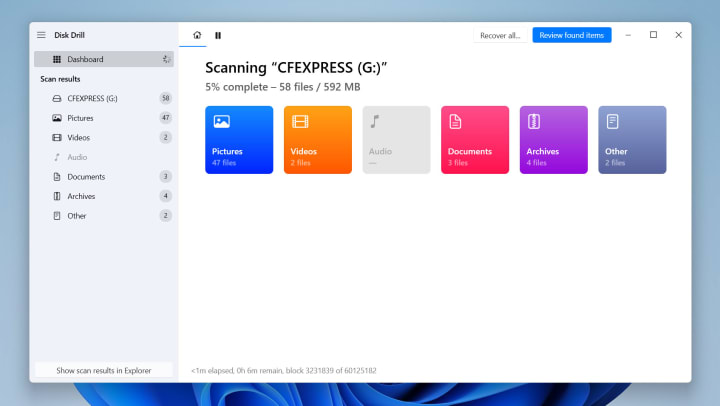
5. As files appear during the scan, you can preview them. It helps you verify the content of photos and videos.
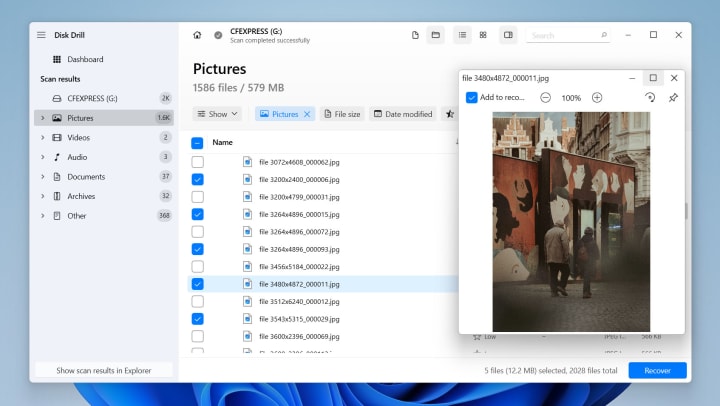
🧩 Pro tip: Although you might be tempted to start recovering files as soon as they appear, we recommend waiting until the scan completes. Completing the scan allows Disk Drill to assess the recovery chances for each file.
6. You have the option to recover all found files or only select those you specifically need.
7. Before you recover the files, choose a safe location on your computer or an external drive to save the recovered data.
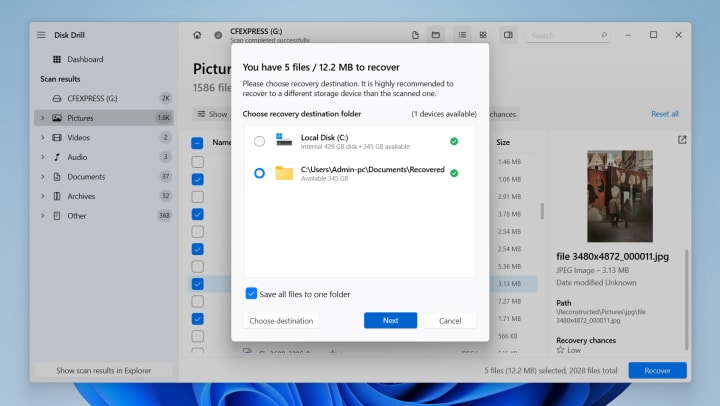
👁️ Pay attention: It’s important to save the recovered files to a different location than the original CFexpress card to prevent any potential overwriting of data.
🔴 Note: The trial version of Disk Drill will allow you to recover up to 500 MB of data for free. For more extensive recovery needs, purchasing the Pro version is necessary.
🖇️ Disk Drill also includes several additional functions. You can read the full software review to learn more about them.
Method 2: Restore Deleted Partitions with TestDisk
Another software that we recommend is TestDisk. It proves invaluable if the loss of data on your CFexpress card occurred due to a deleted partition or corrupted file system. TestDisk can restore these partitions and recover files from file systems that other software might not even detect.
👁️ Pay attention: TestDisk operates through a command line interface, which may appear complex at first. But, if you carefully follow the steps outlined below, you will find the process manageable.
1. Visit the official TestDisk website and download the software. TestDisk does not require installation; you simply need to unzip the archive to a folder on your computer.
2. Open the folder where you unzipped TestDisk and run the testdisk executable. This action will open the command line interface where you will perform the recovery operations.
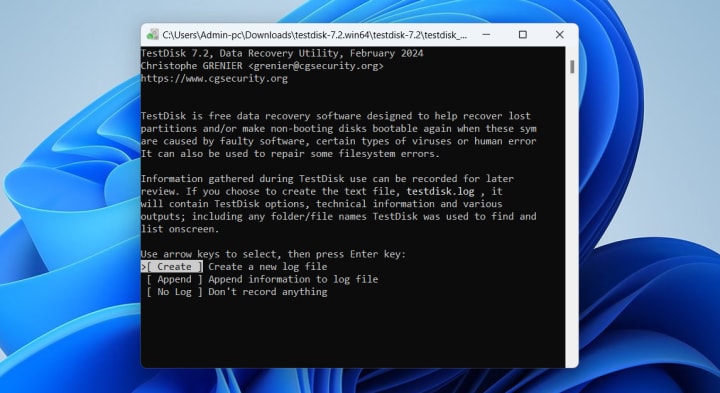
3. When TestDisk starts, it will ask you whether to create a log file of the actions performed. Select ‘Create’ to start a new log to track the steps taken during recovery.
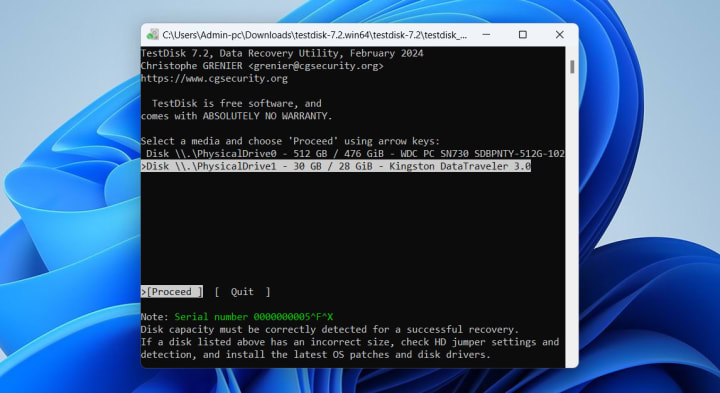
4. You will be prompted to choose the disk to be analyzed. Use the arrow keys to select your connected CFexpress card and proceed by confirming the disk selection.
5. TestDisk should automatically detect the correct partition table type (e.g., EFI GPT, Intel, Mac, etc.). Confirm the suggested type, or choose manually if you are certain of the specific type used by your card.
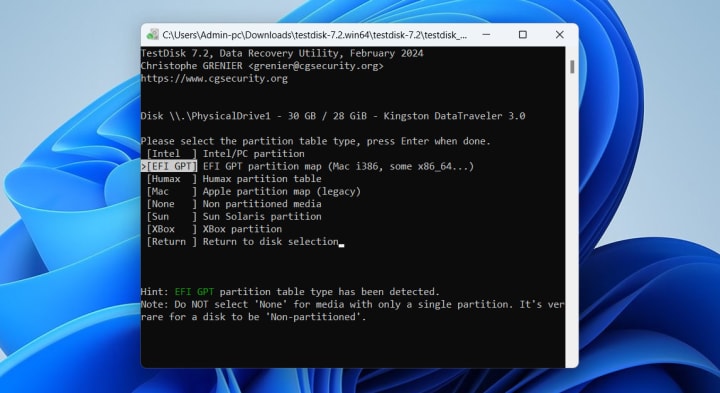
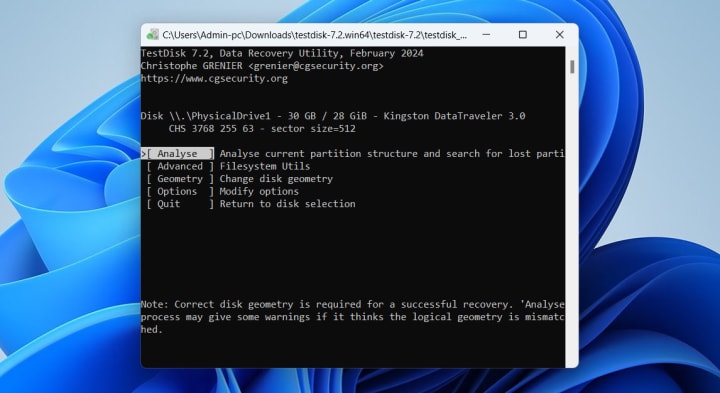
6. Select ‘Analyse’ and then ‘Quick Search’ to let TestDisk scan for lost partitions. If the quick scan doesn’t find the lost partitions, you can opt for ‘Deeper Search’ for a more thorough scan.
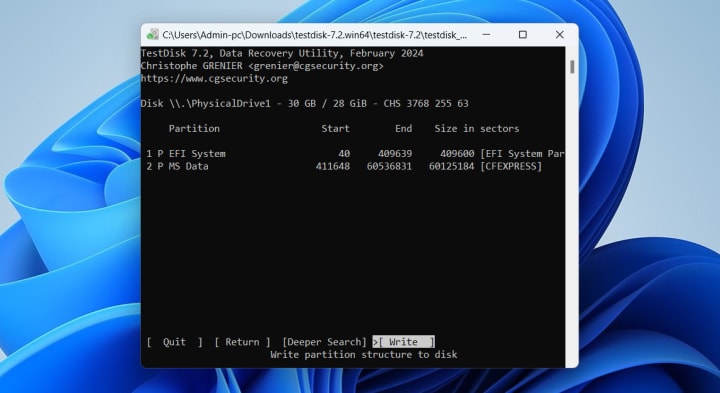
7. Once the scan is complete, TestDisk will list any partitions it finds. Select the partitions you wish to recover, and choose ‘Write’ to write the new partition structure to the disk.
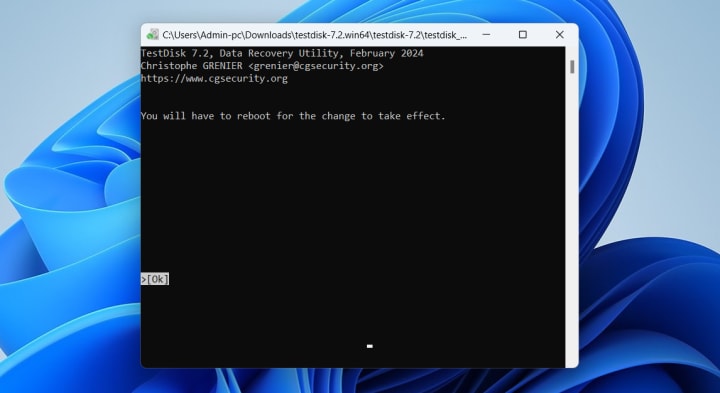
8. After you write the new partition table, reboot your computer to apply the changes. Verify if the recovered partitions are accessible and check the integrity of the data.
When You Need to Contact a Professional Data Recovery Service
Even if you read the methods described above and are unsure of your ability to recover data from a CFexpress card, or if you try and fail, we advise you to contact professional data recovery services. Below is a list of situations where it is necessary or recommended to seek professional help:
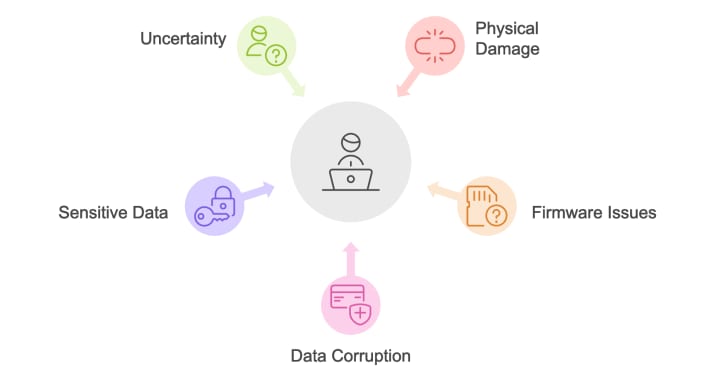
- First, extensive physical damage to the card is a clear signal to seek professional help. If your CFexpress card has visible signs of physical damage such as cracks, bends, or burns, attempting recovery yourself could lead to further data loss.
- Second, if you encounter complex firmware issues where any device does not recognize the card or shows as an incorrect storage size, professionals can often restore access to the data through advanced techniques not available in commercial software.
- The next situation is when there is data corruption due to a virus or malware attack. Professionals can help salvage data and guarantee that the recovered data is clean and free from malicious software.
- Lastly, if your data loss involves highly sensitive or critical data where the cost of permanent loss outweighs the cost of recovery, it is prudent to rely on professional services. This guarantees that you take every possible measure to recover important files.
Conclusion
In conclusion, CFexpress cards offer powerful performance for the storage and access of high-quality images and videos, but they are not immune to data loss. Data loss from CFexpress cards is a common problem for all who depend heavily on these high-performance storage devices. Therefore, we gathered all our knowledge and presented methods that can recover data from these cards.
The step-by-step guides provided demonstrate that while DIY recovery methods like Disk Drill can be incredibly reliable, some situations require professional data recovery services. Remember, you must act quickly and use the right tools to protect your data against permanent loss.
FAQ
What should I do if my computer does not recognize my CFexpress card?
If your computer fails to recognize your CFexpress card, you should first check there are no connection issues. Verify that both the card reader and the card are clean and undamaged. Try a different card reader or a different computer to isolate the problem. Additionally, update your computer’s drivers to provide compatibility with the card reader. It is also wise to check whether the card is formatted correctly, which is necessary for recognition. If these steps do not resolve the issue, use your computer’s Disk Management tool to see if the card appears there and confirm it has a drive letter assigned. If problems persist, seek professional help from a data recovery service.
What are the signs that my CFexpress card is failing and might soon lose data?
Signs that your CFexpress card is failing include frequent error messages when you access or save files, slowed performance, and corrupted files that do not open properly. Additionally, if files disappear or become inaccessible, or if the device that reads the card makes unusual noises, these can be critical indicators of failure. These symptoms suggest that the card is at risk of imminent failure and potential data loss.
How can I prevent data loss on my CFexpress card?
To prevent data loss on your CFexpress card, you must handle the card with care. Avoid physical damage and protect the card from extreme environmental conditions. Use high-quality card readers to prevent connection and data transfer issues that may lead to data corruption. Always use the proper software method to eject the card from your computer or camera to confirm data integrity. Update your camera and card reader firmware to prevent compatibility issues. Finally, make regular backups of the data on your CFexpress card to other storage mediums or cloud solutions to minimize the risk of data loss.
About the Creator
Handy Recovery Advisor
Since 2017, we have empowered everyday users with comprehensive solutions for data recovery, loss prevention, and data management. Our passionate team has crafted over 500 guides to make complex data challenges approachable for everyone.
Keep reading
More stories from Handy Recovery Advisor and writers in Geeks and other communities.
CHKDSK Stuck on Stage 4? Here's What You Should Do
Have you ever had CHKDSK stuck while performing a disk scan? The scenario is common among those who diagnose hard drive issues, where the utility freezes, and the situation becomes more complicated. In many cases, this problem is related to bad sectors or hardware degradation. Through countless examples, you can see that the tool, though useful, can struggle when faced with certain underlying disk problems. In this article, we will break down these challenges and provide expert advice on how to resolve the issue.
By Handy Recovery Advisorabout a year ago in Geeks
Not Just For Clean Up: A History Of The MCU's Department of Damage Control
Initially an organisation that seemed to exist to help the heroes of the Marvel Cinematic Universe, from Phase Four onwards, the Department of Damage Control has shifted into a more antagonistic role. Most recently seen in the Wonder Man series, the current incarnation of Damage Control seems to target superpowered individuals, regardless of whether that person poses an active or intentional threat.
By Kristy Anderson7 days ago in Geeks




Comments
There are no comments for this story
Be the first to respond and start the conversation.