
Common Canon Printer Issues and Effective Solutions: Your Guide to Seamless Printing
Common Canon Printer Issues
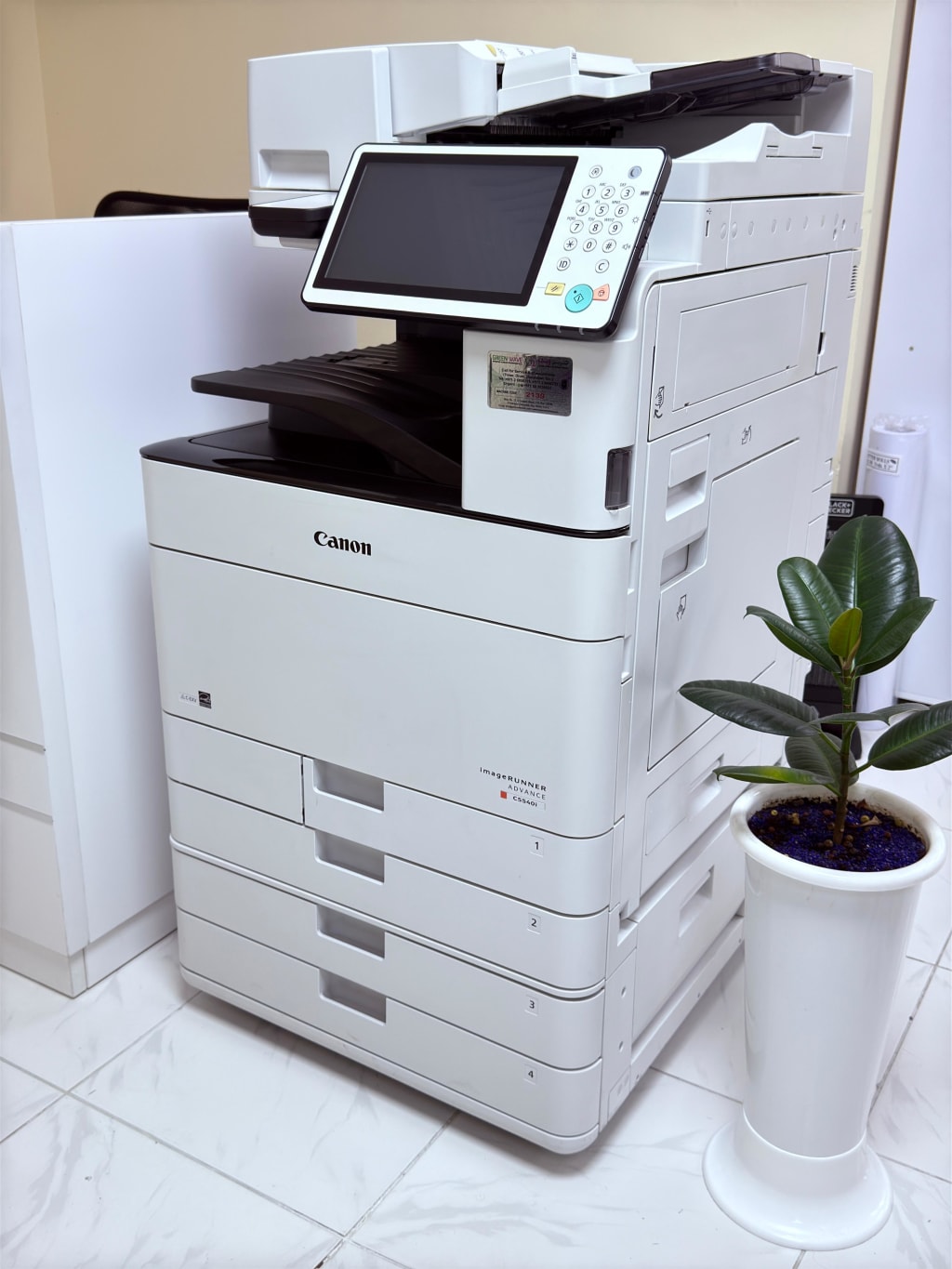
When it comes to quality printing, Canon printers are well known for meeting users personal and professional needs. Companies all over the world trust these devices to not only get the job done fast but also reliably. For a company, reliability is everything. However, like all electronic devices, they can occasionally run into problems. But we can simply fix the problems with some troubleshooting steps. If you're in need of professional help, Canon printer services in Abu Dhabi are readily available to assist you with repairs and maintenance. Here in this blog you are going to get complete insights on the Canon problems and how you can fix them.
Offline or Printer is Not Responding
One of the most annoying problems is when your Canon printer is not responding or is showing as offline.
Solution:
Check the connection: Ensure the printer is connected to the computer or network and turned on. Verify that it is connected to the correct network if using Wi-Fi.
Restart the printer: Turn off the printer and wait for a few seconds, and turn it back on to reset the connection.
Set printer to online mode: On your computer, go to printer & scanner settings, select your printer, and make sure it is set to online.
Poor Printing Quality
Canon printers are known for their clear printing quality. If you notice blurry or faded text or images, it will be because of ink or toner issues.
Solutions:
Check ink and toner level: If your ink or toner is low, replace or refill it.
Clean the print head: Over time the printer head can become damaged or clogged. Access the printer's maintenance settings to clean the printer head. This will help to clear the blockage and improve the print quality.
Adjust print settings: Ensure that your printer settings are configured for the appropriate print quality.
Paper Jams
Paper jams are one of the common issues with any printer. Jams can occur for various reasons, such as dirty rollers, overloaded trays, paper size mismatches, etc.
solutions:
Turn off and unplug the printer: Turn off the printer and unplug it before addressing a paper jam.
Remove Jammed Paper: Open the printer and remove the jammed paper carefully. Be gentle to avoid tearing the paper or damaging the internal components.
Check the Paper Path and Rollers: Inspect the paper path for any dust or debris and clean the rollers using a soft cloth to prevent future jams.
Printer Error Codes
Canon printers may show error codes such as "Error 5200" and "Error 5B00." These error codes usually indicate specific problems related to the printer's internal components.
Solutions
Look Up the Error Code: Refer to your Canon printer's manual or Canon website to understand what the error code means. Each error code corresponds to any particular issue, such as printer head malfunction, paper feed issues, or ink system problems. Reset the printer: For many error codes, simply resetting the printer by turning it off and on again can help to clear the issue. Consult Professional Help: If the error code persists, it's better to contact a Canon service centre for professional assistance.
Printing Slow
If your Canon printer is printing slower than usual, it could be due to incorrect settings or software issues.
Solutions:
Check Print Quality settings: Printing at high quality or resolution settings can slow down the printing process. Switch to faster print mode or draft mode for quicker prints.
Update Printer Drivers: Outdated printer drivers will slow down the printing process. Visit the Canon website, download, and install the latest drivers for your printer model.
Check for Network Issues (For Wireless Printers): If you are using a wireless printer, slow network speed can impact the printing process. Ensure that your printer has a stable connection to your Wi-Fi network.
Canon Printer Not Connecting to Wi-Fi
Wi-Fi connectivity issues are common, especially when setting up a Canon printer for the first time.
Solutions:
Recheck Wi-Fi Credentials: Ensure that the Wi-Fi network name and password are entered correctly in the printer settings.
Restart the Printer and Router: Sometimes simply restarting the printer and Wi-Fi router can resolve the connectivity issues.
Use WPS (Wi-Fi Protected Setup): If your router supports WPS, press the WPS button on your router and select the WPS option on your Canon printer settings for automatic connection.
Low or No Ink Warning
Canon printers will often show "Low Ink" or "Out of Ink" messages, even when the ink levels are sufficient. This can happen because of sensor issues or inaccurate readings.
Solutions:
Check Ink Cartridge: Make sure that the ink cartridge is properly installed and not expired.
Clean the ink cartridge: Clean the ink cartridge and printer head area with a soft, clean cloth to ensure no ink build-up is causing inaccurate readings.
Reset the Ink Levels: If the problem persists, reset the ink levels through printer maintenance settings.
Error Printing from Certain Applications
Sometimes, printing from specific applications, like Adobe PDF or Word, can cause issues such as blank pages or printing errors.
Solutions:
Update the applications: Ensure that the application you are printing from is up to date.
Change Print Settings: In the application, check the print settings to ensure the correct printer is selected and adjust the page setup.
Reinstall Printer Drivers: If the problem continues, try reinstalling the printer drivers for a fresh configuration.
Printer Making Noises:
If your Canon printer starts making unusual sounds, it could be due to something stuck inside or mechanical issues.
Solution:
Check for the obstruction: Turn off the printer and check for any foreign objects that could be causing the noise, such as paper fragments or small debris.
Inspect the printer mechanism: If the noise continues, seek help from a printer repair service centre.
Conclusion
Canon is one of the greatest printer brands, and their printers offer some of the best features that other printer companies do not. However, occasional issues can disrupt their performance. By understanding common problems and their solutions, you can address minor issues yourself. For more serious concerns, professional Canon printer services in Abu Dhabi are just a call away.
About the Creator
Keep reading
More stories from writers in Education and other communities.
Why the Menswear Market Is Redefining Modern Style and Self-Expression?
Fashion has become a powerful medium of self-expression, and men’s apparel is no longer limited to basic functionality. Over the years, the menswear market has evolved significantly, reflecting changing attitudes toward grooming, personal branding, and lifestyle choices. Today, menswear is viewed not just as clothing but as a statement of identity and confidence.
By Akshay Kumar7 days ago in Education



Comments
There are no comments for this story
Be the first to respond and start the conversation.